
AWZ Illustrated Quick Start
AWZ is a device refresh tool for jailbroken iOS devices. It changes the device parameters presented to selected apps and clears their data. It offers extensive settings, randomized parameters, full backups and virtual location.
1. Basic Use
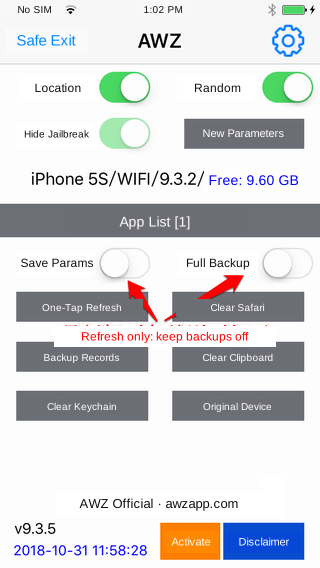
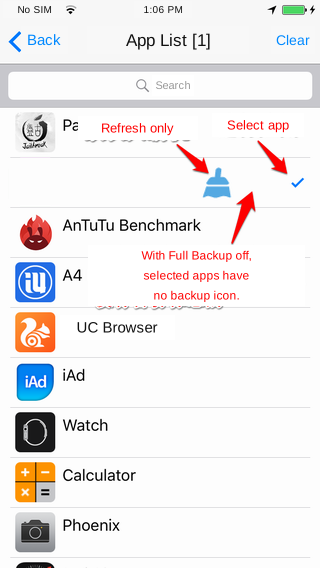
Open AWZ and enable Random Parameters, which is on by default. Select the required apps in App List, then tap One-Tap Refresh. No restart is needed. This clears the selected apps’ saved data. When those apps request device parameters, AWZ returns the simulated values, so the apps see a fresh device environment.
|
|
|
2. Full Backups
AWZ supports full app backups. To use them:
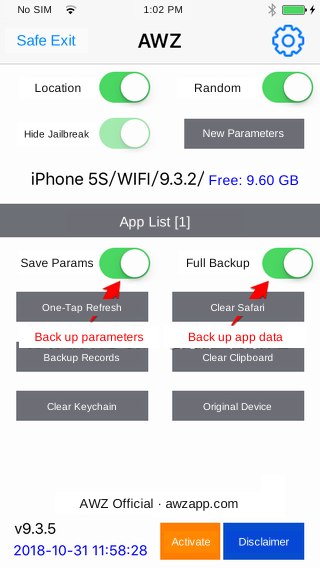
1. Enable Save Parameters and Full Backup on the main screen.
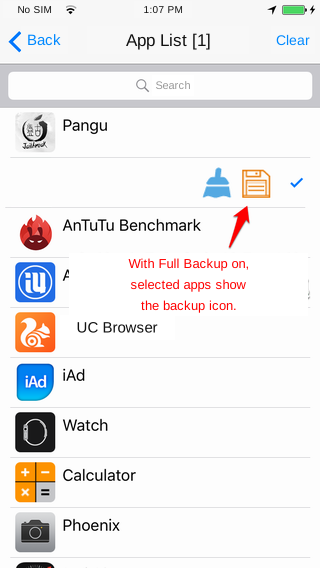
2. In App List, enable backup for each app you want to back up.
2. Select an existing record in Backup Records as the current record, or create a new record using One-Tap Refresh.
3. Sign in to the app account you want to back up, such as user123.
4. Tap One-Tap Refresh. The device parameters and app account data are saved to the current record.
5. In Backup Records, select a record to restore it, swipe right to edit its parameters, or swipe left to rename it.
|
|
|
Export Backup Records:
In System Settings, tap Export Backup Records. Select the records and choose Export Separately at the lower right. Use iTools on a computer to copy the files from File System (Jailbroken) → /var/mobile/exportdata. Alternatively, choose Pack and Export by QR Code at the lower left, then download the records in a computer browser or scan the code with another device. Both devices must be on the same local network.
Import Backup Records:
Use iTools on a computer to copy the backups to File System (Jailbroken) → /var/mobile/importdata, then tap Import Backup Records in System Settings.
Import NZT Backup Records:
1. Export the NZT backup from var/mobile/iGrimace.Note: An igri file and the folder with the same name together form a complete NZT backup.
2. Copy the backup data to var/mobile/otherdata, then tap Import NZT Backup Records in AWZ Settings.
3. Location Simulation
1. Enable Default Location on the AWZ home screen.
2. Open Settings at the upper right and enable Simulate Location.
3. For a random location, enable Smart Random Location for New Profiles and set a larger Random Range.
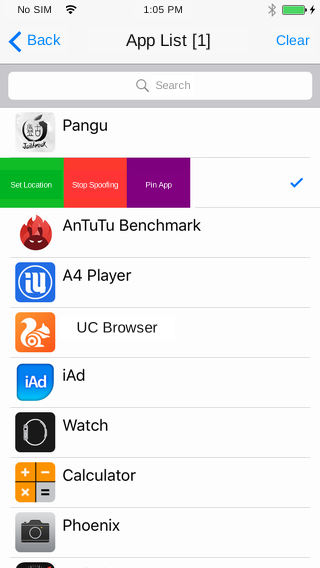
4. To choose a specific location, disable Smart Random Location for New Profiles. In App List, swipe the target app right and tap Simulated Location. Choose a point using the city guide or map, then tap Set at the upper right.
|
|
|
Location Settings for Saved Records
You can also change a saved record’s simulated location. Swipe the record right in Backup Records, then tap Location Parameters.
|
|
